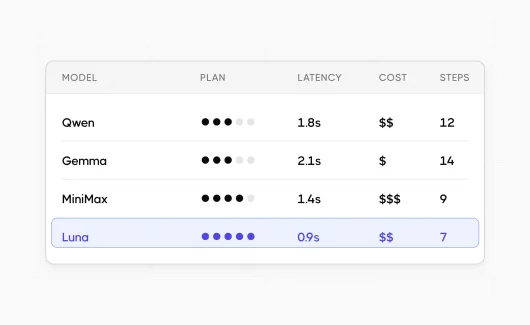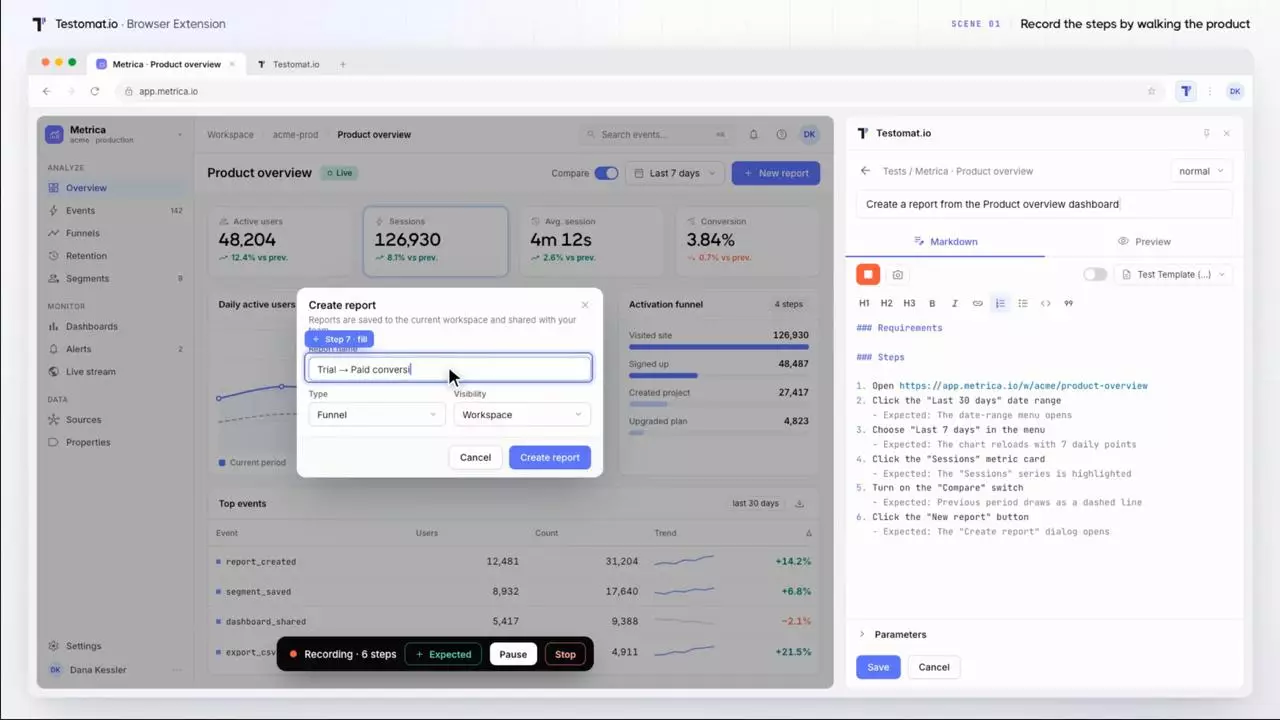


Your team writes Playwright tests every week. You add locators, you wait for text, you check that the button exists. But the next UI refactoring breaks half of those checks, and the feature works fine. The test fails for a reason unrelated to the product. In the article below, you’ll learn which part of an E2E test is safe to give to AI and which parts must stay in code. Then you will see how decision models convert plain statements into Playwright assertions with a confidence score.
Why Tests Fail When the Feature Works
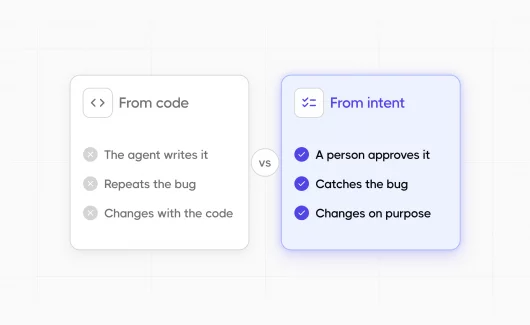
A typical E2E test checks intent through implementation details. You want to confirm that the user is logged in, and you write a check for the Logout link. The intent stays the same for years, and the Logout link moves to a dropdown after the next redesign.
Here is a common set of checks after a login step:
await expect(page.locator('nav')).toBeVisible();
await expect(page.getByText('Logout')).toBeVisible();
await expect(page.getByRole('button', { name: 'New Project' })).toBeVisible();
await expect(page.locator('.projects-list')).toBeVisible();
Each line encodes a guess about the markup. The nav element becomes a header, the class projects-list gets renamed, and the test goes red. A Playwright test that uses the recommended role-based locators breaks less often, and it continues to describe markup instead of intent.
Visual regression is a separate case. A pixel comparison catches a broken layout, and it fails on every intended design change. Both problems share the same root: the test describes how the page looks today, and the intent lives only in the test name.
Which Test Steps to Script and Which to Give to AI?
An E2E test follows the Arrange, Act, Assert pattern:
- Arrange creates the test data and preconditions: an account, a project, a signed-in session.
- Act drives the scenario: navigation, clicks, form input.
- Assert reads the page state and compares it with the expectation.
Each step has a different cost of failure. Arrange needs exact values, because the next steps reuse the same project id and email. Act needs the same clicks on every run, because a wrong click breaks every later step. Assert is the last step, so a wrong verdict affects this check only. This cost decides where AI fits. The next sections show why the first two steps stay in code and why Assert is the right place for a cheap model with a confidence score.
Key Problems With AI-Driven Test Actions
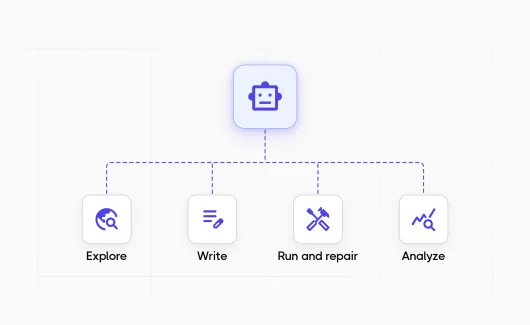
Some tools let a model drive the test steps. You describe a goal in plain text, the model reads the page, chooses the next action and repeats this until the goal is reached. Examples are the agent.act() call in the e2e framework from TesterArmy, the act() method in Stagehand from Browserbase, and a coding agent that clicks through the app over Playwright MCP. This works in a demo. In a regression suite the model makes a decision at every step, and each decision brings a problem.
Every step is a new guess. The model returns a slightly different answer for the same page, so a step that passed yesterday can take a different path today. The errors grow along the chain:
- A single AI step chooses the right action in about 90% of runs on a simple page.
- Four such steps in a row succeed together in 0.9 × 0.9 × 0.9 × 0.9 ≈ 66% of runs.
- A scenario with ten steps succeeds in about 35% of runs, before the application has a single bug.
A wrong step tests the wrong feature. A multi-step goal such as “upgrade the workspace to the Pro plan” gives the model freedom at every step. The agent opens a different page after a layout change, finishes a different flow, and reports a result for a feature outside the test’s scope. You then need to debug a failure that exists only in that run, because the route lives in the model’s memory.
Every step costs a full page read. The agent sends the page to the model before each action, so a multi-step flow multiplies the cost and the time of a single check. TestDino measured a login check through Playwright MCP with Claude Opus 5 at 210,153 input tokens and $0.245 per run. The same check with Jev used 2,775 tokens and cost $0.000117. The agent pays that price on every step of Act.
Caching helps only while the app stays the same. Some frameworks, TesterArmy’s e2e included, record a passing agent run and replay it without model calls. The sequence after an app change looks like this:
- The replay reaches a step that differs from the current page.
- The agent continues from the current screen and finds a new way to the goal.
- The test turns green, and the report misses the change that broke the old path.
A scripted test fails at step 1 and tells you what changed. The agent repairs the path, and the next run pays the full model price again.
A fully agent-driven test with fixed steps is therefore slow and, in most cases, unreliable. The exception is exploration. TesterArmy’s explore mode for bug bashes is a reasonable use of a full agent, because exploration works without a scripted expectation to protect. For the scripted steps you need the model at the end of the test, and the next section shows which kind of model fits there.
What Is a Decision Model?
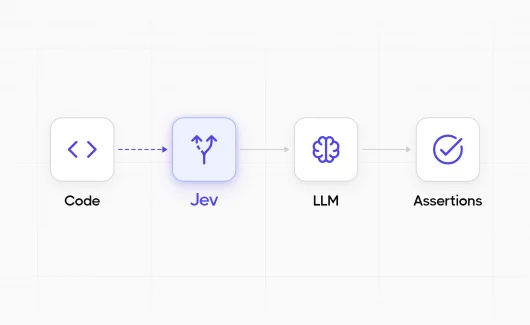
A decision model answers a closed question about a given state and returns a probability for each option instead of free text. Jev, released by TypeSafe AI in September 2026, is the first public model of this kind. You send a page snapshot as state and a list of questions, and you get a typed answer with a probability for each. The model picks from the options you provide, so the output format is fixed before the call.
Jev supports a few question types:
- Choice picks a single option from a list, for example which button matches
the control that saves the form. - Score places the answer on an ordered scale.
- Noul returns the probability that a statement is true.
The probability replaces temperature tuning. A chat model gives a slightly different verdict on each run. You fight this with prompts and retries. A decision model gives the same answer with the same probability for the same input, and you set the pass level in config. Our post on deterministic AI decisions in Explorbot covers the model in more depth, including the vendor benchmarks.
How to Use Decision Checks in Playwright
The pattern needs a small custom matcher and an API key. The test stays plain Playwright. Arrange and Act stay scripted, and the decision call comes at the end.
Writing the toSatisfy Matcher
The matcher takes an ARIA snapshot of the page, sends it to Jev with a list of statements as noul questions, and compares every probability with a pass level. The ARIA snapshot comes from the Playwright ariaSnapshot API and gives the model a compact text view of the page. The example below calls Jev through the OpenRouter Decisions API, so an OpenRouter key is enough.
// tests/jev.matcher.ts
import { expect as base, test, type Page, type Locator } from '@playwright/test';

const MODEL = process.env.JEV_MODEL ?? 'typesafe/jev-1.13';
const PASS_LEVEL = Number(process.env.JEV_PASS_LEVEL ?? 0.85);
const REPORT_ONLY = process.env.JEV_REPORT === '1';

type Verdict = { statement: string; probability: number };

async function decide(state: string, statements: string[]): Promise<Verdict[]> {
  const questions = Object.fromEntries(
    statements.map((text, i) => [`q${i}`, { type: 'noul', instructions: text }]),
  );
  const res = await fetch('https://openrouter.ai/api/alpha/decisions', {
    method: 'POST',
    headers: {
      'Content-Type': 'application/json',
      Authorization: `Bearer ${process.env.OPENROUTER_API_KEY}`,
    },
    body: JSON.stringify({ model: MODEL, state, questions }),
  });
  if (!res.ok) throw new Error(`Jev request failed: ${res.status} ${await res.text()}`);
  const data = await res.json();
  return statements.map((statement, i) => ({
    statement,
    probability: data.answers[`q${i}`].noul as number,
  }));
}

export const expect = base.extend({
  async toSatisfy(target: Page | Locator, statements: string[]) {
    const state = await target.ariaSnapshot();
    const verdicts = await decide(state, statements);

    for (const v of verdicts) {
      const line = `${v.probability.toFixed(2)}  ${v.statement}`;
      test.info().annotations.push({ type: 'jev', description: line });
      console.log(`[jev] ${line}`);
    }

    const failed = verdicts.filter((v) => v.probability < PASS_LEVEL);
    const message = () =>
      ['Statements under the pass level:', ...failed.map((v) => `  ${v.probability.toFixed(2)}  ${v.statement}`)].join('\n');

    return { pass: REPORT_ONLY || failed.length === 0, message };
  },
});

export { test };
Every verdict lands in the test annotations and in the test output, so the probability is visible in the report even when the check passes. The JEV_REPORT=1 variable switches the matcher to report mode. Every probability is logged, and the test stays green. The TypeSafe API accepts the same request shape at https://api.typesafe.ai/v1/systemone with a TYPESAFE_API_KEY, as described in the TypeSafe docs.
If your team runs CodeceptJS on top of Playwright, the same idea is already built in. CodeceptJS 4.2.1 added a Decision helper with I.decide() and I.decideVisually(), so you can write the statements directly in a scenario without a custom matcher. The setup is described in the CodeceptJS post on Jev-based assertions.
The Test File
Arrange seeds a signed-in session with projects. Act fills the form with scripted calls. Assert sends the statements from the intro to the model and then runs an exact check for the saved data.
// tests/profile.spec.ts
import { test, expect } from './jev.matcher';

const STATEMENTS = [
  'navigation menu is shown',
  'user is logged in',
  'user has a control to create a new project',
  'user sees a list of existing projects',
];

test.beforeEach(async ({ page }) => {
  // Arrange: a signed-in session with seeded projects.
  await page.goto('/');
  await page.evaluate(() => {
    localStorage.setItem('session', 'alex');
    localStorage.setItem('projects', JSON.stringify(['Website redesign', 'Mobile app', 'Billing service']));
  });
});

test('user updates the display name', async ({ page }) => {
  // Act: scripted navigation and input.
  await page.goto('/profile.html');
  await page.getByLabel('Display name').fill('Alex Morgan');
  await page.getByRole('button', { name: 'Save changes' }).click();

  // Assert: plain statements judged by the decision model.
  await expect(page).toSatisfy(STATEMENTS);

  // Exact checks stay in code.
  await page.reload();
  await expect(page.getByLabel('Display name')).toHaveValue('Alex Morgan');
});
The statements go in a single request, so the cost stays the same for four statements and for ten. The exact toHaveValue check stays in code, because persistence is a precise requirement and a probability gives you less than an equality check here.
We ran this test on a small demo app with a profile page. The run took under two seconds per test, and the model returned these probabilities:
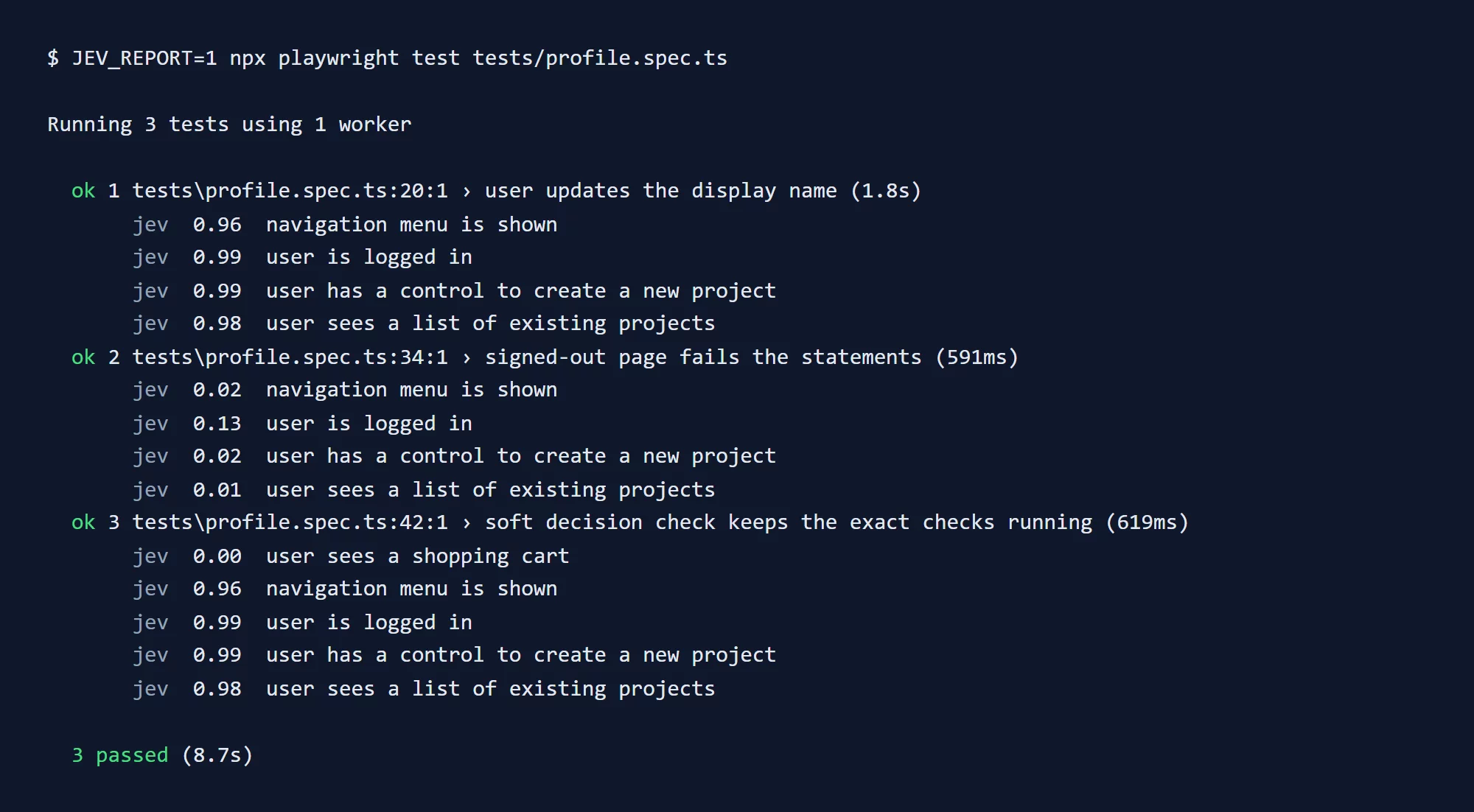
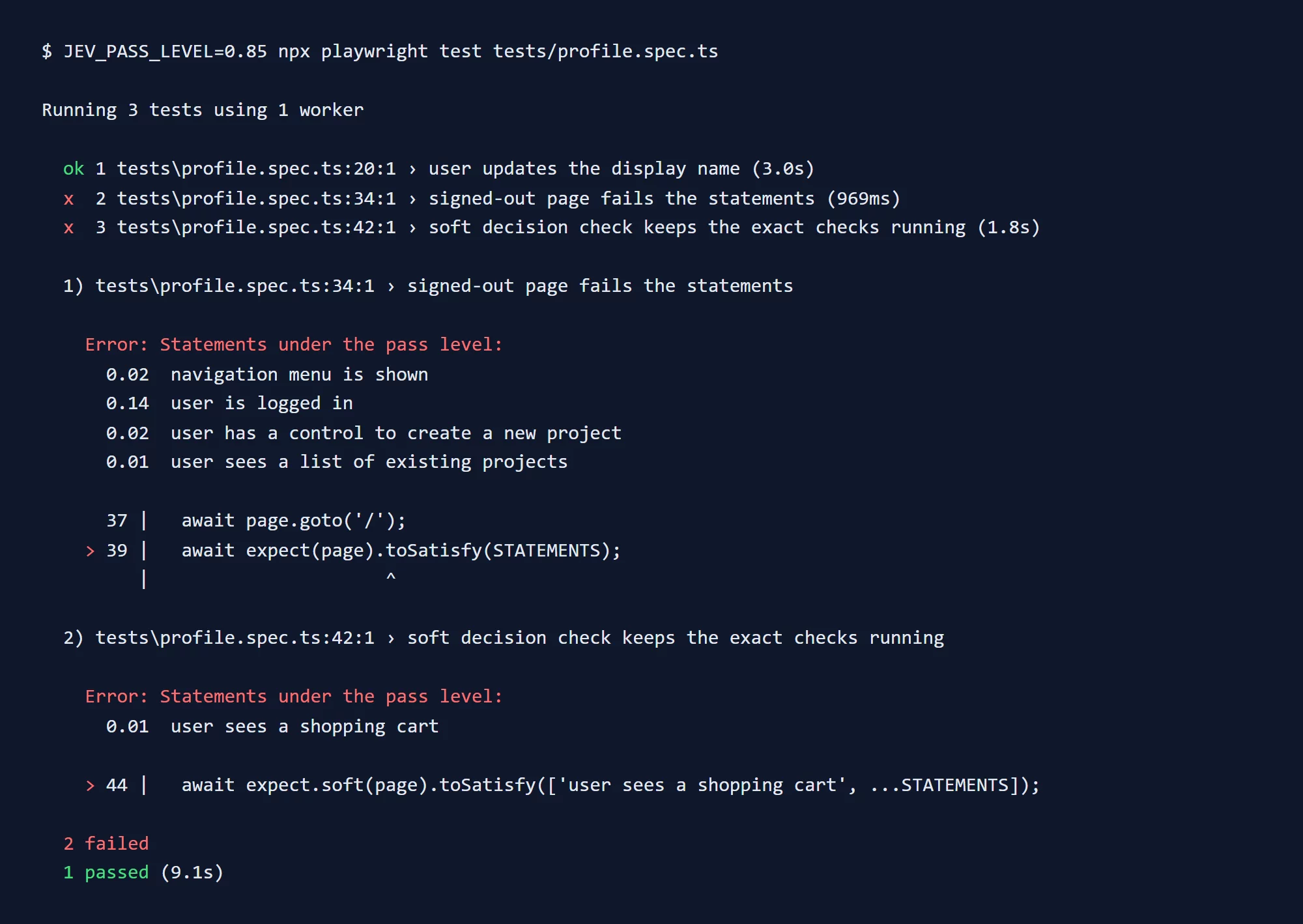
The signed-in page scored 0.96 to 0.99 on all four statements. The same statements on the signed-out page scored 0.01 to 0.13. The statement user sees a shopping cart scored 0.00 on the profile page. We repeated the signed-in run and received the same four values each time.
You can use expect.soft with the same matcher. The test records the failed statement and continues. This mirrors a soft assertion, so the later exact checks keep running.
test('soft decision check keeps the exact checks running', async ({ page }) => {
  await page.goto('/profile.html');
  await expect.soft(page).toSatisfy(['user sees a shopping cart', ...STATEMENTS]);
  await expect(page.getByRole('heading', { name: 'Profile settings' })).toBeVisible();
});
With the pass level at 0.85, the signed-out test fails with the failed statements and their scores in the error message. The soft test reports the cart statement and finishes its exact check:
Adding a Visual Sanity Check
Jev 1.14 accepts PNG and JPEG images, Jev 1.13 works with text only. Through the OpenRouter Decisions API the screenshot goes into the state field as an image entry next to a short text line, and the questions stay the same. A screenshot with a single question works as a cheap sanity check:
const png = await page.screenshot({ type: 'png' });
const broken = await decideVisually(png, 'This page looks visually broken: missing styles or overlapping elements.');
expect(broken).toBeLessThan(0.5);
This catches a missing stylesheet or an overlapping layout without a baseline image. The check sees the current viewport only, so content under the scroll stays invisible to it.
We tested this route through OpenRouter, and the image was ignored. A styled page and a page with a broken layout both scored 0.35, and the usage showed the same 347 input tokens with and without the screenshot. The OpenRouter Decisions API has an undocumented image field at the time of writing, so a visual check needs a direct TypeSafe API key. Treat the visual mode as a separate experiment until you confirm the scores on your pages.
Benefits of Decision Checks
The pattern changes how a test reads and how it ages.
- The check states the intent. A product manager reads “user sees a list of existing projects” and understands the test without the markup.
- The check survives UI changes. A renamed class or a moved link keeps the statement true, so the test stays green when the feature works.
- Several statements cost a single request. TypeSafe lists Jev at $0.042 per million input tokens with free output. Our requests with a page snapshot and four statements cost under $0.00002 each, as reported in the OpenRouter usage field.
- Every check carries a confidence score. A failed test shows the statement and its probability, so you see whether the page changed or the model hesitated.
TestDino measured a login suite with similar statements and reported about $0.0001 per run with Jev versus $0.07 to $0.25 with Claude Opus 5 setups. The verdicts matched across all setups in that measurement.
How to Pick the Pass Level
Start in report mode and collect probabilities from your suite. Then set the pass level from your data.
Report mode logs every probability and keeps the test green. You can run the suite several times, then break a statement on purpose, for example by ending the session before the check. The log then shows how far apart true and false statements score on your pages.
Our demo run gives you a starting point. True statements scored 0.96 to 0.99, and false statements scored 0.00 to 0.13. TestDino reported a similar picture with true statements near 0.98 and false ones at 0.01 to 0.03. A renamed control landed at 0.59 to 0.75 in their test. A pass level of 0.85 separates these groups, and your pages may need a different value.
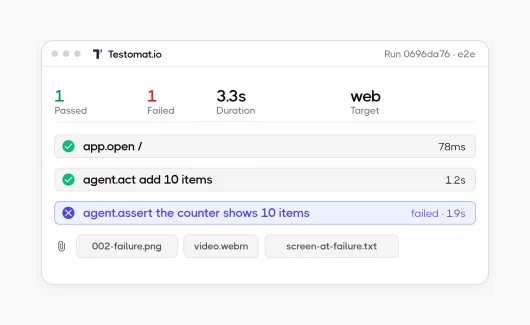
Save every probability together with the test result. In Playwright you can attach it through test.info().annotations, as the matcher above does. The values then appear in the HTML and JSON reports. The Testomat.io Playwright reporter uploads the annotations as test meta, so the run shows every statement with its score next to the page screenshot and the other test artifacts.
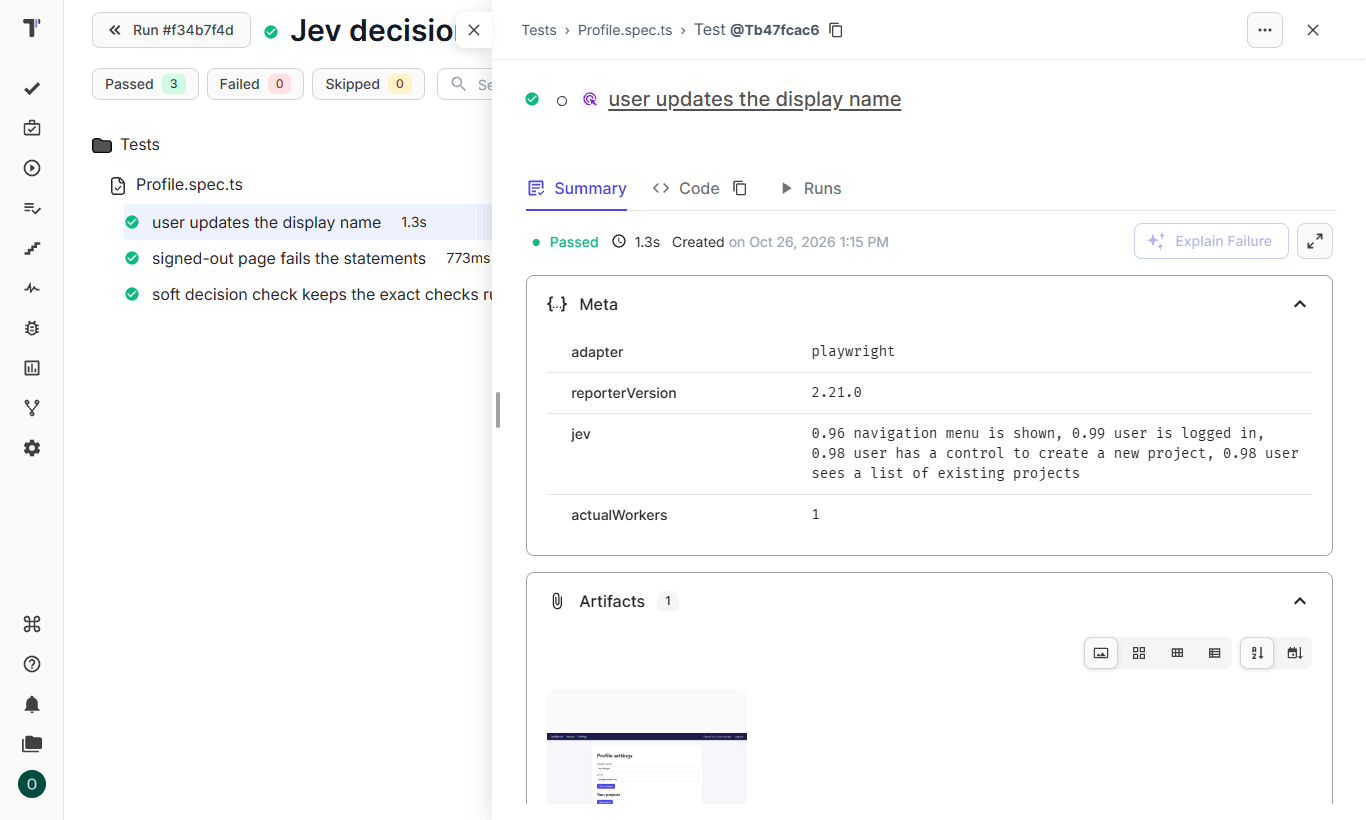
A failed check shows the statements under the pass level with their scores in the failure box, so a reviewer sees the reason without the console output:
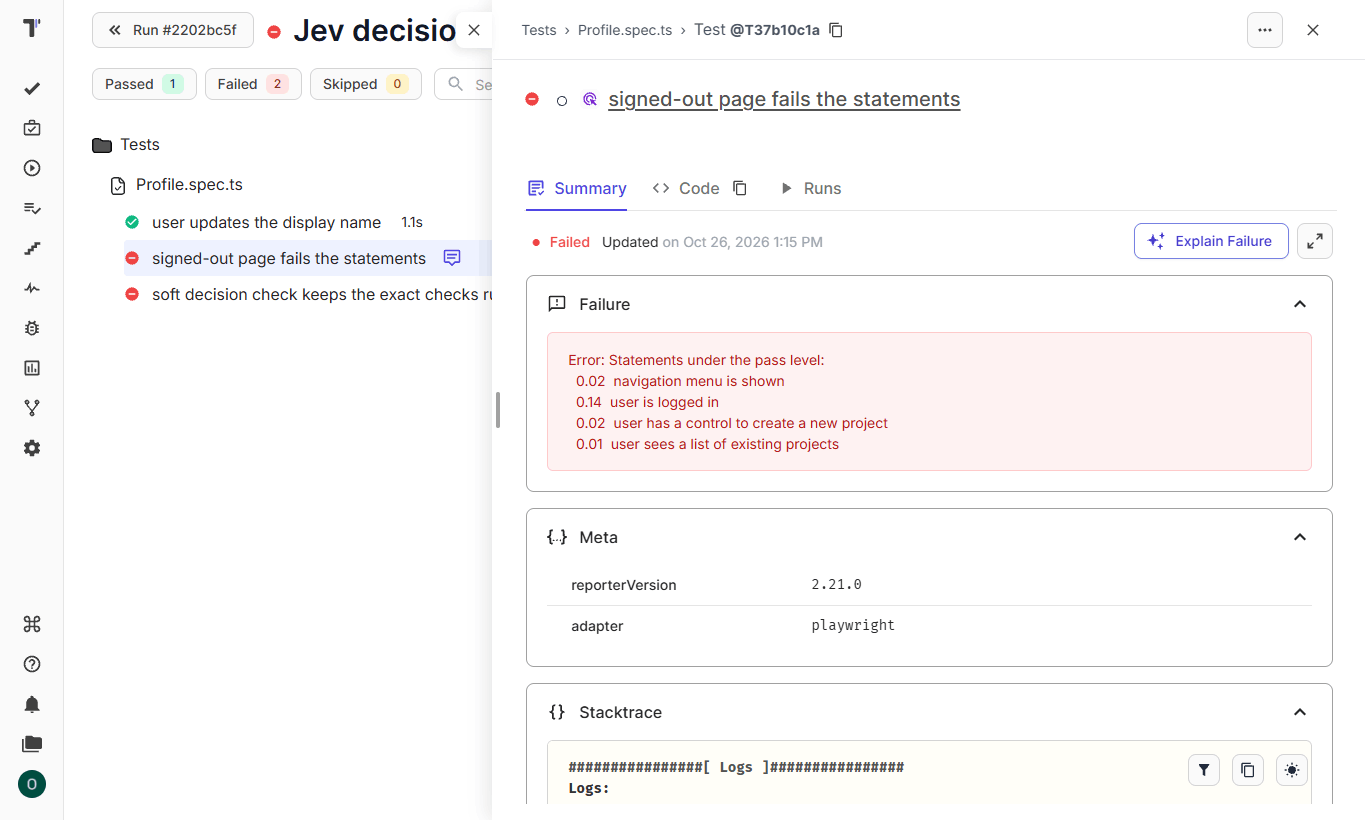
Pin the exact model version in config, because jev-latest changes and a new version shifts the probabilities.
Text Checks and Visual Checks
Both modes have different limits, so it helps to treat them as separate tools.
Text checks work on the ARIA snapshot. The model sees roles and text. It misses icons and layout. A page with a broken stylesheet looks correct in a snapshot. You need to scope the snapshot to the region under test. Page text can steer the model, and a large unrelated state lowers accuracy.
Visual checks work on a screenshot. The model sees the current viewport only, without the content under the scroll, so a broken footer passes a check of the first screen. Image input in Jev 1.14 stays in preview, and TypeSafe recommends tests on labelled images before production use.
Some tasks give unreliable answers in both modes:
- Counting items and comparing numbers.
- Date and time logic.
- Exact values such as totals and IDs.
A choice question always returns one of the given options, so you need an option such as none of these in every choice question. You can keep exact values in a regular expect call.
Bottom Line
The rule is short. Script the steps that later steps depend on, and give AI the final step, which the rest of the test ignores. Arrange and Act stay in code, and Assert gains plain statements with a confidence score. The same decision layer works for unknown flows. Explorbot, the open-source exploratory testing agent, uses Jev for closed questions such as which element to click, and your scripted suite uses it to judge a known state. Known flows get a scripted test with decision checks, and unknown flows get an agent. 👉 Connect your Playwright suite to Testomat.io and see every decision score next to its screenshot in the run report. Try it free, without a card.